แสดงบทความที่มีป้ายกำกับ Articles แสดงบทความทั้งหมด
Clean your laser printer safely with these tips
Clean your laser printer safely with these tips
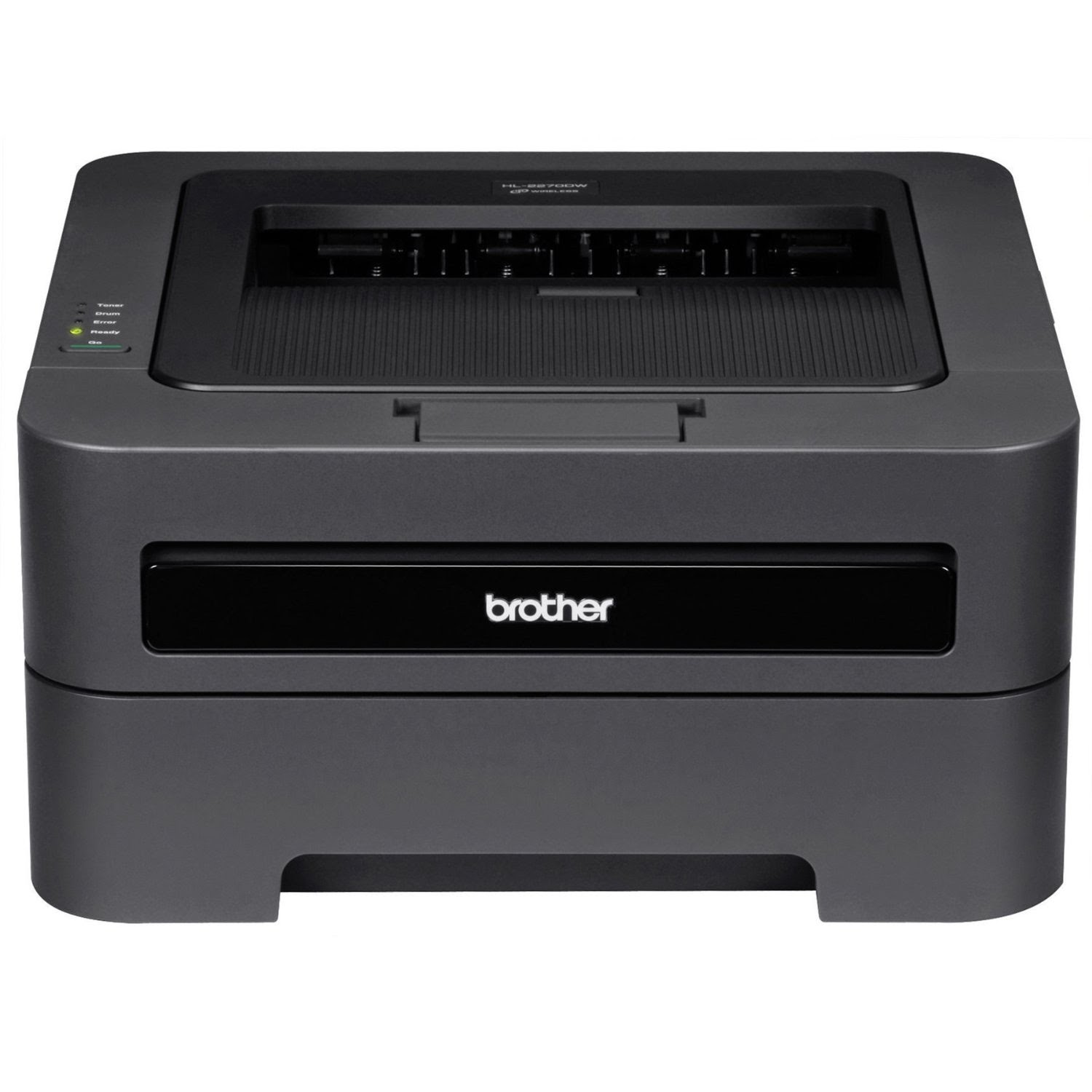 |
| Brother Laser Printer |
Laser printers are not difficult to clean if you know what you're doing and use the right tools. Here's a breakdown of the tools and methods you need to use to do the job safely and correctly.
Cleaning a laser printer can be easy, provided you know what you're doing and use the right tools. This article will share with you some simple tips to help you clean your laser printers like a pro.
A word to the wise
Before I begin, I’d like to stress that this article is intended only to assist with basic laser printer cleaning. If you’re unsure of your ability to perform any sort of printer maintenance, or if performing such maintenance will void the printer's warranty, you should contact a qualified service professional or the manufacturer.
Some safety issues
Though laser printers come in various shapes and sizes, they all use toner (that messy black powder). While cleaning your laser printer, the last thing you want is to have toner in your lungs or on your skin. The tips provided in this article should help reduce the chance of you being bathed in toner while cleaning your printer.
Toner particles are so fine that they can take more than fifteen minutes to settle if they become airborne—make that hours if you have fans or air-conditioners circulating them through an office. To avoid inhaling toner particles, try to keep the air in the cleaning area stable and leave the printer area for several minutes after cleaning. When you return, move slowly, open all windows, and begin vacuuming any toner from the floor, tabletops, and so forth. Check out the U.S. Environmental Protection Agency's Indoor Environment Management Branch: Pollution Prevention page for more information on toner health concerns.
Another dangerous area common to all laser printers is the fuser-roller compartment. The fuser roller gets extremely hot during the printing process and is usually covered for safety. Burns can occur, however, if you accidentally uncover and touch the roller. I recommend that you leave your printer off for at least one hour before cleaning.
As with all electrical equipment, make sure that the power cable is unplugged before you begin any work.
Tools you will need
Here are the basic tools you need to clean a laser printer:
- Toner vacuum
- Toner cloth
- Mask
- Cotton swabs
- Isopropyl alcohol (99 percent pure)
- Paint brush (soft bristle, about a half-inch wide)
- Latex gloves (the ones used by doctors)
Toner vacuum
Household vacuum cleaners do not have filters that can trap fine toner particles. Don’t even try to use one since you risk blowing toner into the air. The toner vacuum I use is made by 3M and looks like a black fishing box. It's portable, powerful, and easy to use. Vacuums range in price from $200 to $300, and replacement filters cost around $30.
Toner cloth
Toner cloth is essential when cleaning laser printers. It is a special disposable cloth that attracts and traps toner particles. Usually yellow in color, toner cloths are slightly larger than letter-size paper. You “activate” the cloth by slowly stretching the sides. What the toner vacuum leaves behind, the toner cloth will pick up. Never try to reuse a toner cloth. In my book, the toner cloth is spent and ready for the trash after each use.
Mask
You'll want to prevent toner particles from entering your throat and lungs. While toner inhalation has not been proven to cause serious health problems, respiratory tract irritation can occur with exposure to large amounts of toner dust. Toner can also contain potentially hazardous compounds, such as styrene, ethyl benzene, and xylene isomers. Use a mask that filters both odors and fine particles, such as the ones used for painting and sanding. You can usually find these at local hardware stores.
Cotton swabs
You can use the regular cotton swabs found in your local drugstore or those made especially for cleaning printers. The printer swabs come with six-inch-long sticks.
Isopropyl alcohol
Do not use regular rubbing alcohol. Either use chemicals that are specifically designed to clean the heads of VCRs, cassette tapes, tape drives, and the like or use 99 percent pure isopropyl alcohol, which evaporates without leaving any residue.
Paint brush (soft bristle, about a half-inch wide)
This is used to brush out toner from tight crevices. Since bristles may fall out during the cleaning process, pull out any loose ones before you use the brush. I don’t recommend using toothbrushes.
Latex gloves
These must fit tightly on your hands since you want to maintain skin sensitivity. Drugstores usually sell them in boxes of 100.
Okay, let's begin cleaning that laser printer
Now that you have the tools, it’s time to unplug the laser printer, let it sit for one hour, and then follow the steps below:
- Don your mask and latex gloves.
- Open the printer and gently remove the toner cartridge or toner bottle.
- Use your “activated” toner cloth and wipe the toner cartridge. Place the cartridge aside on another activated toner cloth.
Use your toner vacuum to remove spilled toner from within the printer’s internal compartment. Try to prevent the vacuum’s nozzle from actually touching any of the printer's internal surfaces.
Use your paintbrush to remove toner from any crevices. Use gentle motions and vacuum as necessary.
Many laser printers use very fine wires (called corona wires) that are often exposed. If your printer has such wires, take care to avoid vacuuming or brushing them. Breaking a corona wire can be a costly mistake. Dip a cotton swab into isopropyl alcohol and gently run it along the length of the wire. Also be sure to clean the underside of the wires. Never apply pressure.
Reinsert the toner cartridge, close the printer, reconnect the power cord, and you are done.
Avoid using the toner cloth inside the printer
Though you can use the toner cloth to clean the inside, I do not recommend it. There are many sharp points that can tear the cloth’s fiber and leave loose strands inside the printer.
OEM vs. remanufactured toner cartridges (RTC)
I highly recommend that you use original equipment manufacturer (OEM) toner cartridges. However, due to environmental and cost concerns, you might want to use RTCs. Make sure that your RTCs are from reputable suppliers. Low-quality RTCs can void your printer warranty, leak toner, and make your support work downright miserable.
Get the tools you need
I hope this article has shown you how easy it can be to safely clean your laser printer. To get the tools you need, contact a local or online printer accessories supplier.
"Phoner toner" scams
Has an unscrupulous telemarketer tried to sell your organization low-grade toner? How did you recognize the scam? Post a comment to this article and warn others about this potential costly con.
Credit : techrepublic.com
Inkjet or laser printing: which is more cost-effective?
Inkjet or laser printing:
which is more cost-effective?
 |
| Brother Laser Printer |
With the standard inkjet cartridge now producing a measly 200 pages, we look at whether laser printers represent a cost-effective alternative for the home consumer.
Back in 1969, a graduate named Gary Starkweather, working in the copier department at Xerox in the US, had a visionary idea. He wanted to utilise new laser technology to create a radically different type of printer. It would scan an image, transfer it electrostatically, and then use heat to fuse tiny specs of toner dust on to a piece of paper.
The top brass at Xerox thought his idea was wildly unrealistic. But Starkweather persisted and a decade later the first commercial laser printers went on sale. The only drawback was that they were the size of a small car – and equally expensive.
As home printing took off three decades ago, it was cheap inkjet models – which simply hammered tiny dots of ink on to paper – that would end up in most people's homes. The bulky laser version was a business-only product.
However, the last few years have seen the size and price of laser printers drop dramatically. Some models can now comfortably fit on a desktop.
Basic monochrome models can be bought for less than £100, although more sophisticated colour versions – with features such as Wi-Fi and duplex printing – can sell for three times that, and more. This compares with the £50 and less that inkjet printers sell for. So a laser will only make sense if the savings on ink outweigh the extra cost of the machine.
Standard laser cartridges – coloured toner (dry ink), typically cyan, magenta, yellow, and black (CMYK) – contain a lot of intricate components, print anything from 1,500-3,500 pages but can set you back a hefty £60-£120 each. Still, that compares well with the measly 200 pages you are likely to get from the standard inkjet cartridge costing around £15.
So do laser printers now represent a cost-effective alternative for the home consumer?
"It depends on how many pages you print," says Patrick Stead, head of cartridge recycler Environmental Business Products. "Laser can be better value over the longer term, but the initial outlay can be a lot more."
Hewlett Packard manufactures more than half of the printers sold in the UK. Its bestselling HP Deskjet 3050A inkjet retails for about £90. The cartridges sell for £10-£15 and have a standard page yield of 190 (black) and 165 (colour).
The company's top-selling HP CP2025 colour LaserJet sells for about £300. Cartridges retail for about £110 and have a page yield of 2,800 (colour) and 3,500 (black).
Cursory number-crunching indicates that if you print only, say, 1,000 pages a year – based on ISO standard 5% paper coverage – then the inkjet, at about 5p per page, is better value
But for anyone who prints more than 2,000 pages a year, a laser printer, at about 3p per page, is cheaper. The savings increase the more you print. A screenwriter, for instance, who prints 10,000 pages, stands to save hundreds of pounds by switching.
"If you print a lot of black and white documents then a laser can save you a lot of money," says Laura Heywood, managing director, at laser cartridge remanufacturer Kleen Strike.
But inkjet does have its advantages. At the domestic end of the market the print quality is higher and the colour definition better. "If you print mostly photos then you probably want to stick with an inkjet printer," Heywood adds.
David Connett, editor of industry magazine The Recycler, says: "If you're buying a laser printer, it's important to work out what you're going to use it for before deciding on a model. As a rule of thumb, the cheaper the printer, the smaller the cartridge, and the lower the page yield."
Samsung's ML2160 monochrome laser printer, for example, costs about £50. But the cartridges also cost £50 – and print a comparatively modest 1,500 pages.
"Do not buy a laser printer on price alone," says Heywood. "Always look at the cost of the replacement cartridges and their print yield."
One way to save money on these is to buy refilled cartridges, which can be 30-50% cheaper than the original price, according to the European Toner & Inkjet Remanufacturers Association.
Peter Thompson, director at laser cartridge recycler PBT International, says: "Properly remanufactured laser cartridges are excellent value. But some producers find ways to cut corners, which can result in leakage and sometimes uneven printing. Try to buy from a reputable seller."
Experts say it's always worth investing in a laser that supports duplex printing – printing on both sides of the paper – which cuts down on energy and paper consumption.
"Some laser printers automatically print on both sides," says Connett. "Other models allow you to reinsert pages manually to print the second side. And some do not support duplex printing at all."
It may also be worth buying a printer that is Wi-Fi compatible so that one click of a button will allow you to print, whether from laptop or smartphone.
Thomson concludes: "If you think how little ink is in the average inkjet cartridge compared to the average laser cartridge the economics are in favour of laser. Sometimes the cartridge prices aren't that different. But those for the laser can last an awful lot longer."
Credit : theguardian.com
How Laser Printers Work
How Laser Printers Work
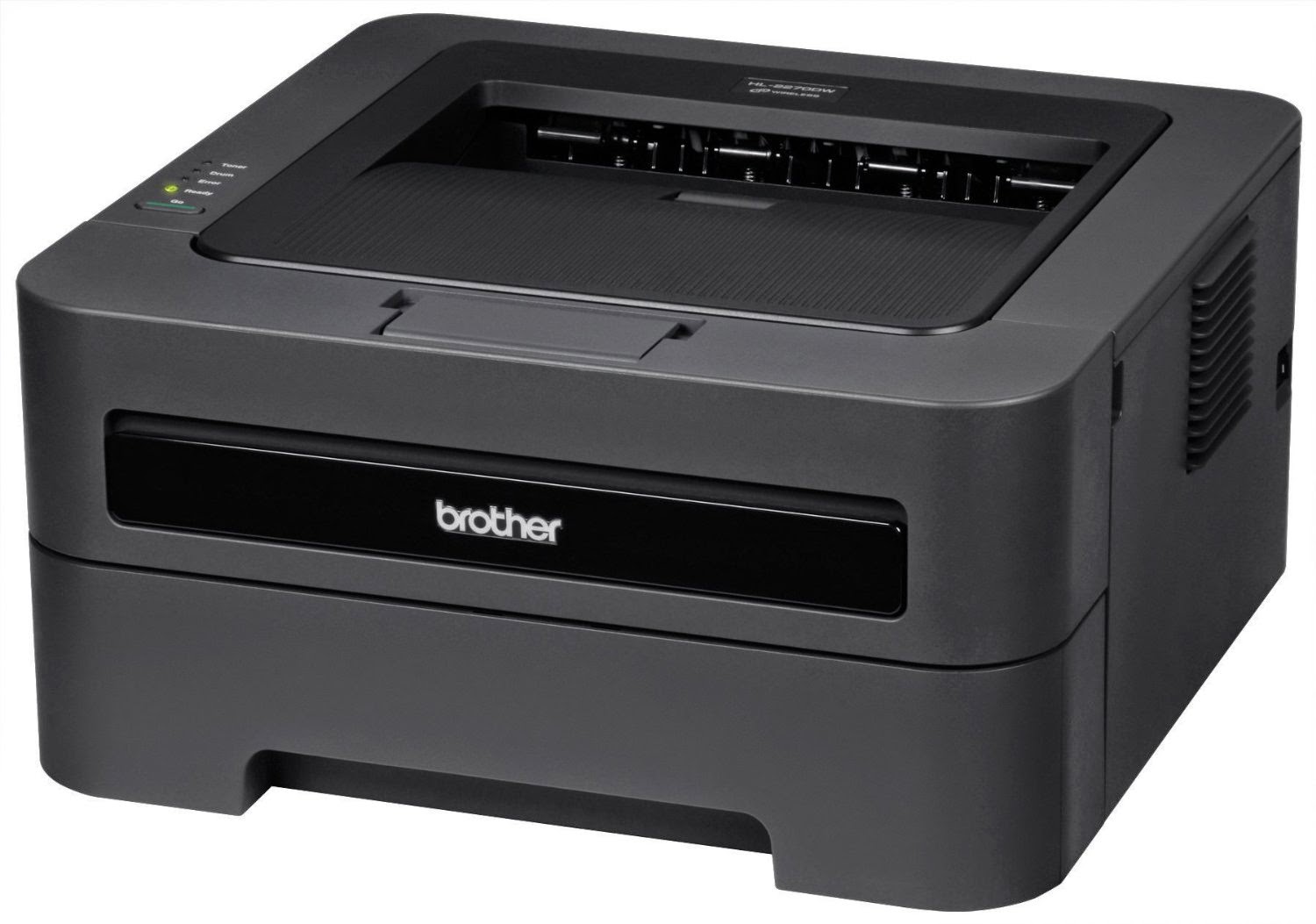
The term inkjet printer is very descriptive of the process at work -- these printers put an image on paper using tiny jets of ink. The term laser printer, on the other hand, is a bit more mysterious -- how can a laser beam, a highly focused beam of light, write letters and draw pictures on paper?
Many people use laser printers in their day-to-day lives, but most probably never think about the technology that turns those bits of digital data into a legible images and text. Very few of us ever consider the drum, the fuser the data exchange or the static electricity that all come together to print our memos.
In this article, we'll unravel the mystery behind the laser printer, tracing a page's path from the characters on your computer screen to printed letters on paper. As it turns out, the laser printing process is based on some very basic scientific principles applied in an exceptionally innovative way.
The Basics: Static Electricity
The primary principle at work in a laser printer is static electricity, the same energy that makes clothes in the dryer stick together or a lightning bolt travel from a thundercloud to the ground. Static electricity is simply an electrical charge built up on an insulated object, such as a balloon or your body. Since oppositely charged atoms are attracted to each other, objects with opposite static electricity fields cling together.
A laser printer uses this phenomenon as a sort of "temporary glue." The core component of this system is the photoreceptor, typically a revolving drum or cylinder.
This drum assembly is made out of highly photoconductive material that is discharged by light photons.
The Basics: Drum
Initially, the drum is given a total positive charge by the charge corona wire, a wire with an electrical current running through it. (Some printers use a charged roller instead of a corona wire, but the principle is the same.) As the drum revolves, the printer shines a tiny laser beam across the surface to discharge certain points. In this way, the laser "draws" the letters and images to be printed as a pattern of electrical charges -- an electrostatic image. The system can also work with the charges reversed -- that is, a positive electrostatic image on a negative background.
After the pattern is set, the printer coats the drum with positively charged toner -- a fine, black powder. Since it has a positive charge, the toner clings to the negative discharged areas of the drum, but not to the positively charged "background." This is something like writing on a soda can with glue and then rolling it over some flour: The flour only sticks to the glue-coated part of the can, so you end up with a message written in powder.
With the powder pattern affixed, the drum rolls over a sheet of paper, which is moving along a belt below. Before the paper rolls under the drum, it is given a negative charge by the transfer corona wire (charged roller). This charge is stronger than the negative charge of the electrostatic image, so the paper can pull the toner powder away. Since it is moving at the same speed as the drum, the paper picks up the image pattern exactly. To keep the paper from clinging to the drum, it is discharged by the detac corona wire immediately after picking up the toner.
The Basics: Fuser
Finally, the printer passes the paper through the fuser, a pair of heated rollers. As the paper passes through these rollers, the loose toner powder melts, fusing with the fibers in the paper. The fuser rolls the paper to the output tray, and you have your finished page. The fuser also heats up the paper itself, of course, which is why pages are always hot when they come out of a laser printer or photocopier.
So what keeps the paper from burning up? Mainly, speed -- the paper passes through the rollers so quickly that it doesn't get very hot.
After depositing toner on the paper, the drum surface passes the discharge lamp. This bright light exposes the entire photoreceptor surface, erasing the electrical image. The drum surface then passes the charge corona wire, which reapplies the positive charge.
Conceptually, this is all there is to it. Of course, actually bringing everything together is a lot more complex. In the following sections, we'll examine the different components in greater detail to see how they produce text and images so quickly and precisely.
The Controller: The Conversation
Before a laser printer can do anything else, it needs to receive the page data and figure out how it's going to put everything on the paper. This is the job of the printer controller.
The printer controller is the laser printer's main onboard computer. It talks to the host computer (for example, your PC) through a communications port, such as a parallel port or USB port. At the start of the printing job, the laser printer establishes with the host computer how they will exchange data. The controller may have to start and stop the host computer periodically to process the information it has received.
In an office, a laser printer will probably be connected to several separate host computers, so multiple users can print documents from their machine. The controller handles each one separately, but may be carrying on many "conversations" concurrently. This ability to handle several jobs at once is one of the reasons why laser printers are so popular.
The Controller: The Language
For the printer controller and the host computer to communicate, they need to speak the same page description language. In earlier printers, the computer sent a special sort of text file and a simple code giving the printer some basic formatting information. Since these early printers had only a few fonts, this was a very straightforward process.
These days, you might have hundreds of different fonts to choose from, and you wouldn't think twice about printing a complex graphic. To handle all of this diverse information, the printer needs to speak a more advanced language.
The primary printer languages these days are Hewlett Packard's Printer Command Language (PCL) and Adobe's Postscript. Both of these languages describe the page in vector form -- that is, as mathematical values of geometric shapes, rather than as a series of dots (a bitmap image). The printer itself takes the vector images and converts them into a bitmap page. With this system, the printer can receive elaborate, complex pages, featuring any sort of font or image. Also, since the printer creates the bitmap image itself, it can use its maximum printer resolution.
Some printers use a graphical device interface (GDI) format instead of a standard PCL. In this system, the host computer creates the dot array itself, so the controller doesn't have to process anything -- it just sends the dot instructions on to the laser.
But in most laser printers, the controller must organize all of the data it receives from the host computer. This includes all of the commands that tell the printer what to do -- what paper to use, how to format the page, how to handle the font, etc. For the controller to work with this data, it has to get it in the right order.
The Controller: Setting up the Page
Once the data is structured, the controller begins putting the page together. It sets the text margins, arranges the words and places any graphics. When the page is arranged, the raster image processor (RIP) takes the page data, either as a whole or piece by piece, and breaks it down into an array of tiny dots. As we'll see in the next section, the printer needs the page in this form so the laser can write it out on the photoreceptor drum.
In most laser printers, the controller saves all print-job data in its own memory. This lets the controller put different printing jobs into a queue so it can work through them one at a time. It also saves time when printing multiple copies of a document, since the host computer only has to send the data once.
The Laser Assembly
Since it actually draws the page, the printer's laser system -- or laser scanning assembly -- must be incredibly precise. The traditional laser scanning assembly includes:
- A laser
- A movable mirror
- A lens
The laser receives the page data -- the tiny dots that make up the text and images -- one horizontal line at a time. As the beam moves across the drum, the laser emits a pulse of light for every dot to be printed, and no pulse for every dot of empty space.
The laser doesn't actually move the beam itself. It bounces the beam off a movable mirror instead. As the mirror moves, it shines the beam through a series of lenses. This system compensates for the image distortion caused by the varying distance between the mirror and points along the drum.
Writing the Page
The laser assembly moves in only one plane, horizontally. After each horizontal scan, the printer moves the photoreceptor drum up a notch so the laser assembly can draw the next line. A small print-engine computer synchronizes all of this perfectly, even at dizzying speeds.
Some laser printers use a strip of light emitting diodes (LEDs) to write the page image, instead of a single laser. Each dot position has its own dedicated light, which means the printer has one set print resolution. These systems cost less to manufacture than true laser assemblies, but they produce inferior results. Typically, you'll only find them in less expensive printers.
Laser printers work the same basic way as photocopiers, with a few significant differences. The most obvious difference is the source of the image: A photocopier scans an image by reflecting a bright light off of it, while a laser printer receives the image in digital form.
Another major difference is how the electrostatic image is created. When a photocopier bounces light off a piece of paper, the light reflects back onto the photoreceptor from the white areas but is absorbed by the dark areas. In this process, the "background" is discharged, while the electrostatic image retains a positive charge. This method is called "write-white."
In most laser printers, the process is reversed: The laser discharges the lines of the electrostatic image and leaves the background positively charged. In a printer, this "write-black" system is easier to implement than a "write-white" system, and it generally produces better results.


